
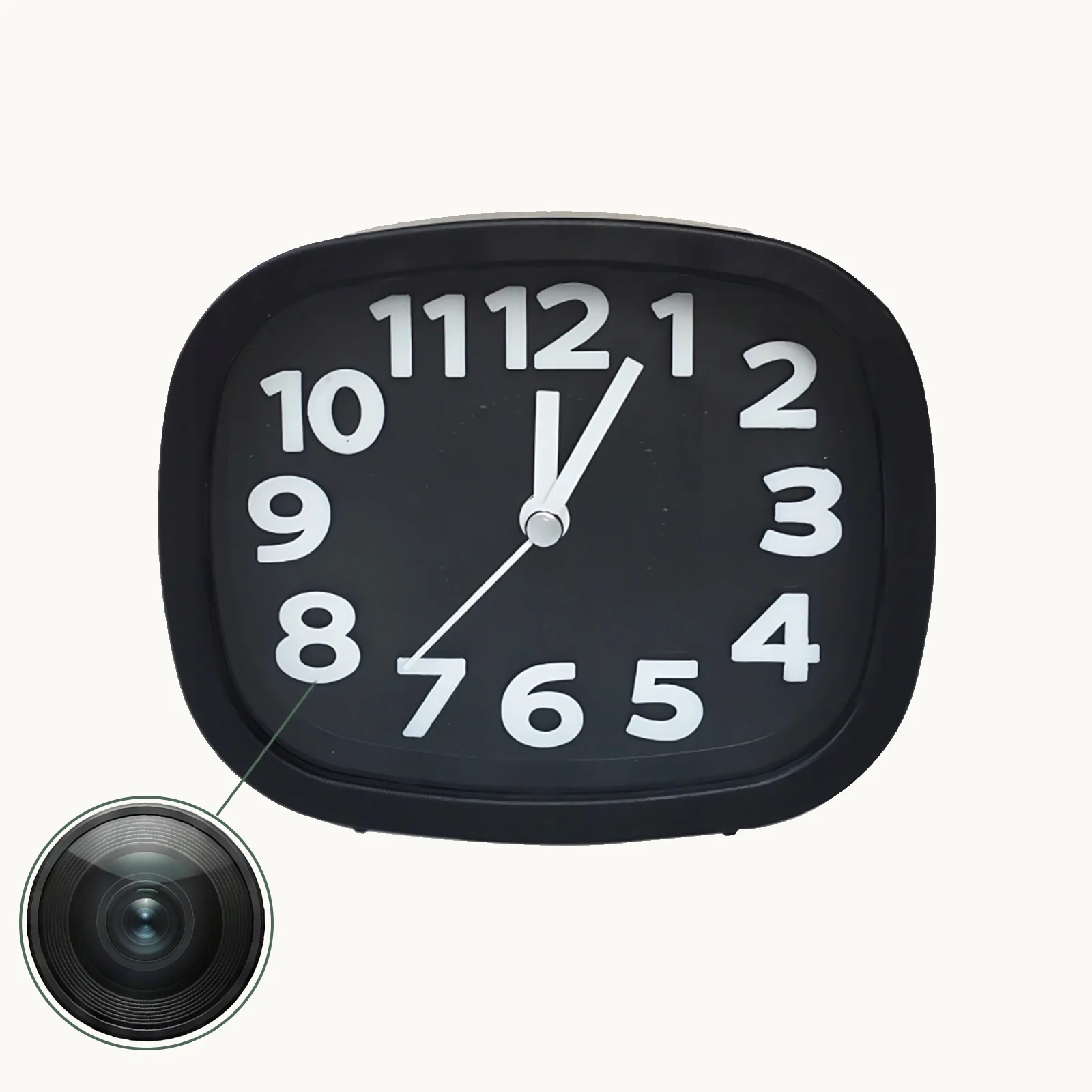
To set up the QZT C6 Tuya WiFi Clock Camera, insert a FAT32 microSD card, plug the clock into 5V USB power, install the free Tuya Smart app on iOS or Android, connect your phone to a 2.4GHz WiFi network, and pair the camera using Bluetooth Auto-Scan or QR Code mode. Everything below walks you through hardware ports, first-time pairing, night vision settings, and common fixes.
1. C6 Clock Camera Layout, Power Switch & Reset Button
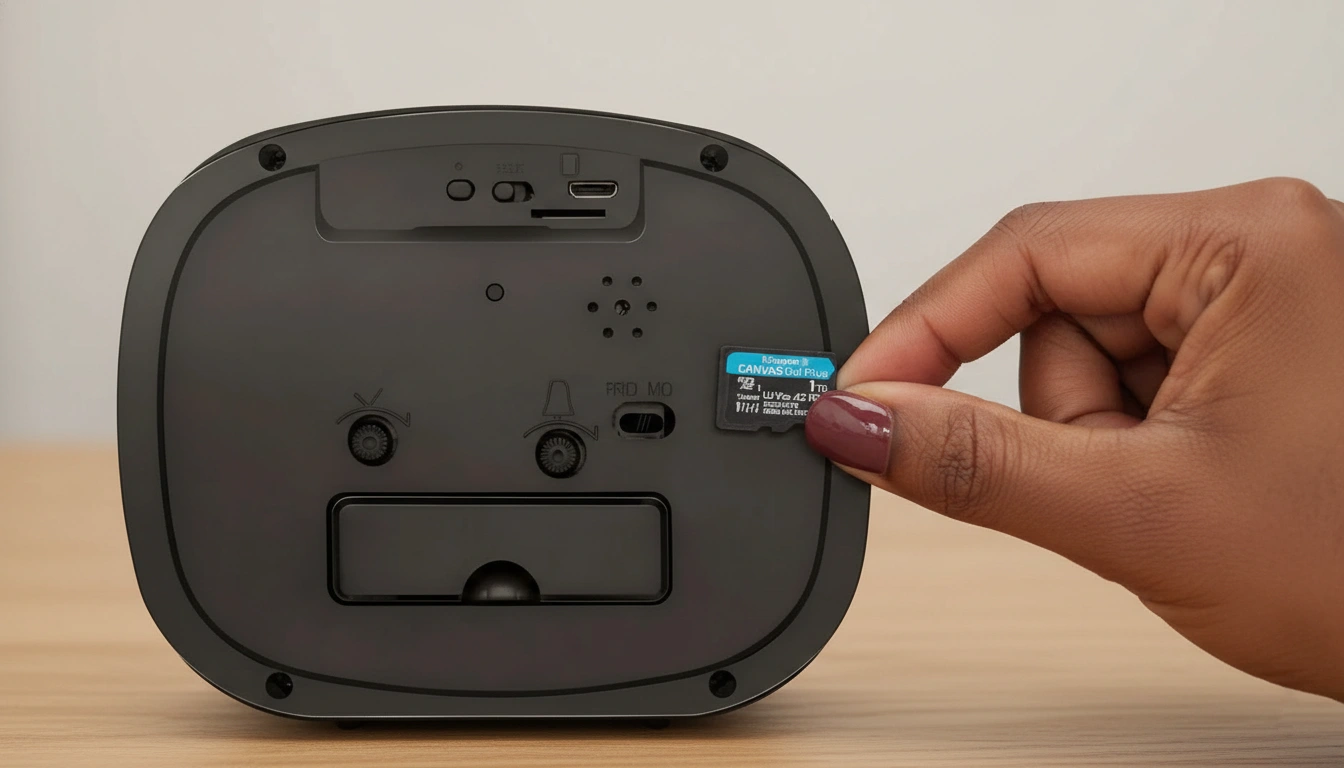
Open the rear battery compartment of the C6 desk clock before plugging it in. Inside you will find the 18650 rechargeable battery bay (remove any clear plastic battery insulation tab if present), the ON/OFF toggle, microSD card slot, recessed reset button, and USB charging port.
- Front Mirrored LED Display: Shows clear digital time while concealing the 1080p lens and invisible IR night vision LEDs behind the dark glass panel.
- 24/7 Continuous Power: For permanent room monitoring, keep the supplied USB cable connected to a 5V/2A adapter; the internal battery acts as a backup during brief power interruptions.
- Viewing Coverage: Position the clock at chest-to-waist height facing the room entrance rather than directly toward a bright window to avoid backlighting.
2. Installing & Formatting the microSD Card for Local Recording
The C6 works with zero mandatory cloud fees—all motion clips and continuous 1080p recordings save directly onto a microSD card (up to 128GB, Class 10/U3). Always insert the card while the clock is powered off.
- Format new 64GB or 128GB cards to FAT32 before insertion, or format them directly inside Tuya Smart under Settings → Storage Settings → Format (see our SD card formatting guide).
- Slide the card into the rear slot until it locks.
- Choose between Event Recording (saves only when motion triggers, extending card history to weeks) or Non-Stop Recording (24/7 loop overwrite).
3. Pairing the QZT C6 with the Tuya Smart App (2.4GHz WiFi)
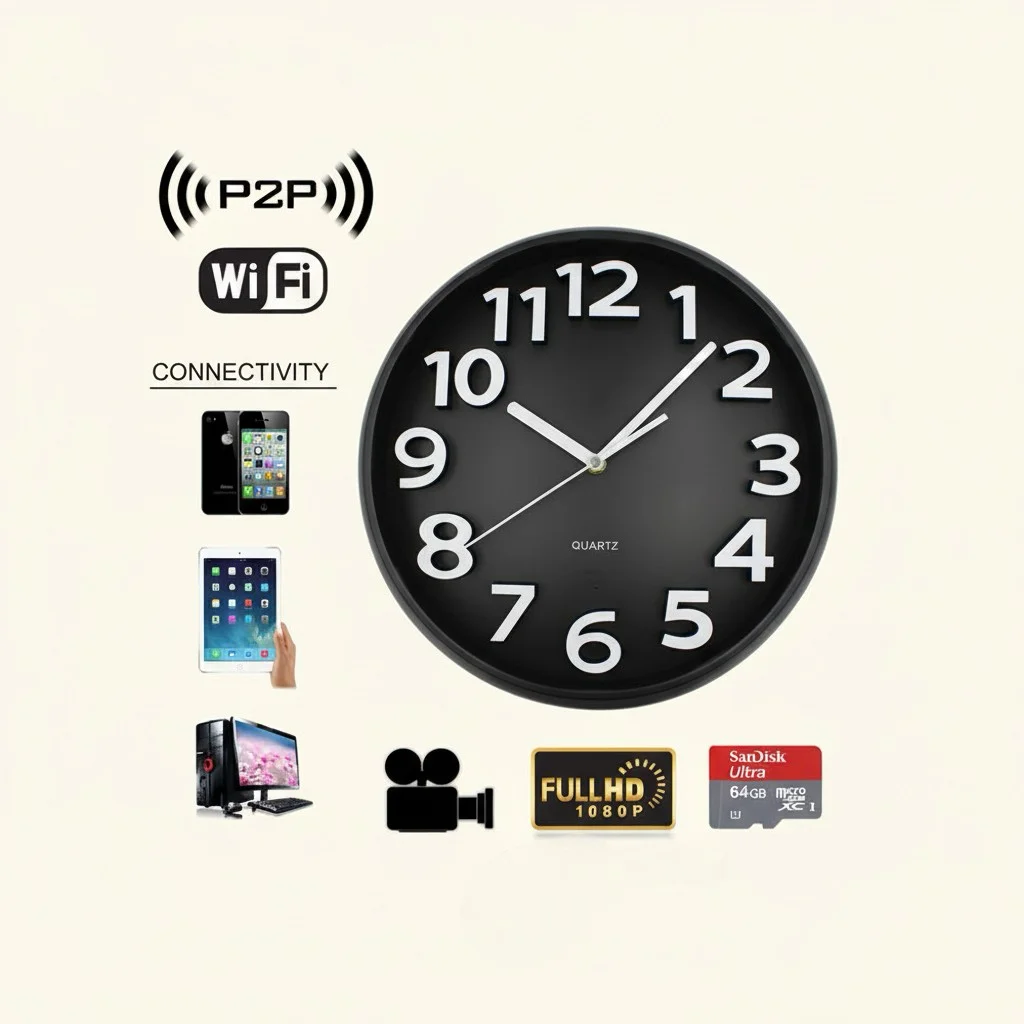
The single most common pairing failure is trying to connect on a 5GHz WiFi band. Confirm your phone is joined to your router’s 2.4GHz SSID and enable Bluetooth + Location permissions before opening the Tuya Smart app.
- Power on the C6 clock and wait 30 seconds until the internal indicator blinks steadily (pairing mode). If it does not blink, hold the recessed Reset button for 5–8 seconds until the device reboots.
- Open Tuya Smart, tap + → Add Device. If Bluetooth auto-discovery pops up the camera, tap Add and enter your 2.4GHz WiFi password.
- Alternatively, choose Camera & Lock → Smart Camera (Wi-Fi), confirm the indicator is blinking, enter your 2.4GHz credentials, and hold the on-screen QR code 15–20 cm in front of the clock lens until you hear or see confirmation.
- Wait 30–60 seconds for the progress bar to reach 100%, then name your room (e.g., Living Room or Office).
4. Night Vision, Motion Alerts & Troubleshooting Offline Clocks
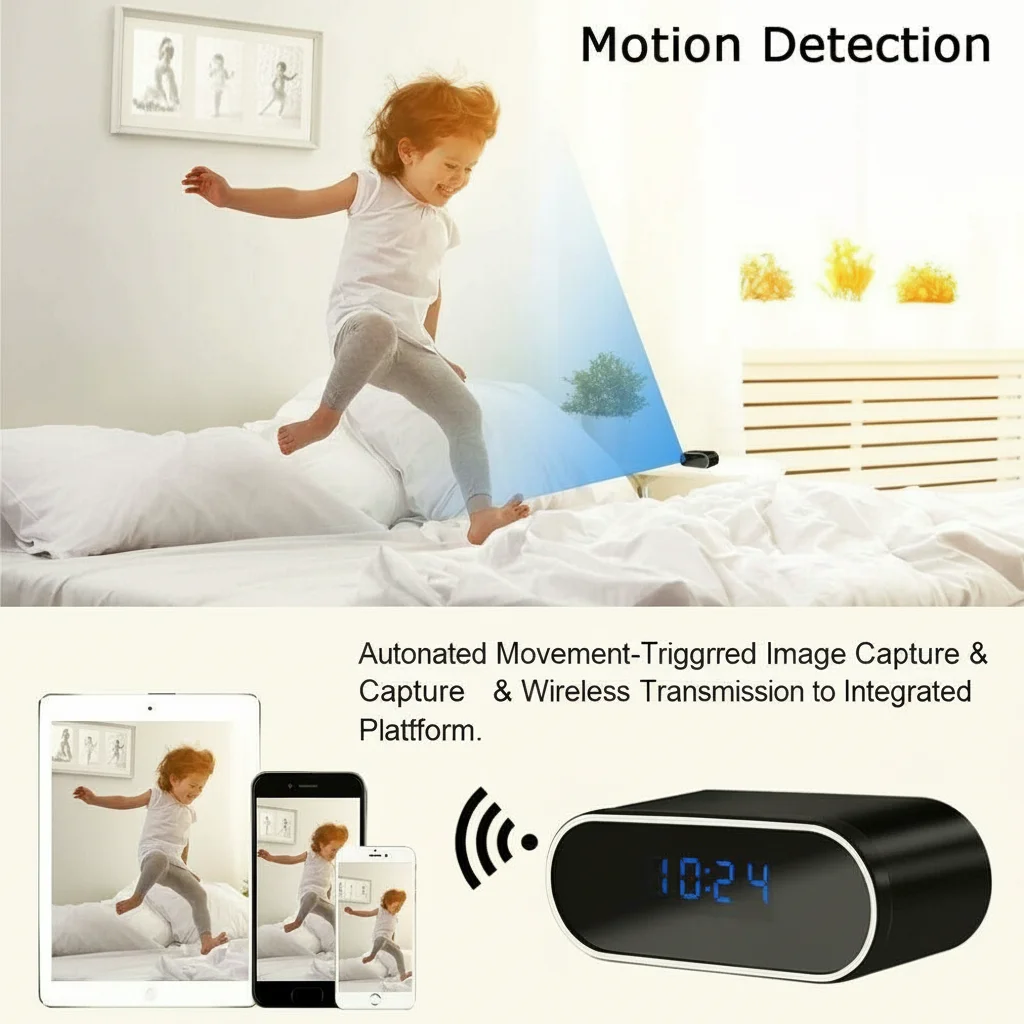
Once online, tap the top-right settings menu in Tuya Smart to fine-tune motion sensitivity, alert schedules, and invisible IR night vision (set to Auto so night vision switches cleanly when room lights turn off).
- Camera fails at 80% during pairing: Dual-band routers that merge 2.4GHz and 5GHz under one name can confuse initial handshakes. Temporarily separate the 2.4GHz band or follow our WiFi camera app connection troubleshooting guide.
- Clock displays time but camera shows offline: Check that the rear camera power toggle is switched ON (the front clock LED and internal camera module can operate independently on some units) and verify your router did not change WiFi passwords.
- Looking for wall-mounted 4K options? Compare the C6 desk clock with our WiFi Wall Clock Hidden Camera (1080p/4K Tuya) or browse all Cámaras Reloj.
Preguntas frecuentes
Does the QZT C6 require a monthly cloud subscription?
No. Live streaming, push motion notifications, and microSD playback inside Tuya Smart are completely free. Cloud storage inside the app is strictly optional.
Can two phones view the C6 clock camera at the same time?
Yes. Register the camera on one primary Tuya Smart account, then go to Settings → Share Device to invite family members securely without sharing your main login.
Do the night vision LEDs glow visibly in a dark bedroom?
No. The C6 uses 940nm invisible infrared LEDs behind the tinted mirror face, so there is no red glow visible to the naked eye in darkness.
How do I move the C6 to a different WiFi network?
First remove the camera from your Tuya Smart app, then hold the rear reset button for 6–8 seconds while powered on and repeat the 2.4GHz pairing steps on the new router.
 English
 Italiano
 Deutsch
 Français
 Español
 Polski